Find Better Trades Faster – Here’s the Tool Making It Possible
Since we launched Signals by TradeSmith in April, thousands of users have been using these short-term trading signals on a daily basis.
The response from TradeSmith members has been fantastic, and we thank you for all your comments and feedback.
Because we’re always aiming to improve our data analytics and trade strategies, we’ve made several valuable enhancements to the Signals experience – designed to help you capture even more potential profits.
Now, if you’re not using Signals, don’t worry. I’ll show you why this new trading strategy is one of the best things that has come out of TradeSmith…
The New Signals Master Portfolio
First, we recently added the all-new Signals Master Portfolio.
A model stock portfolio based on our Signals technology, now available Signals by TradeSmith members and TradeSmith Platinum subscribers.
Please note: If you do not see this feature on your dashboard – and would like to – simply call our Customer Care Team at 888-623-0858 to find out more.
You’ll find details on the Signals home page including all current holdings, as shown below.
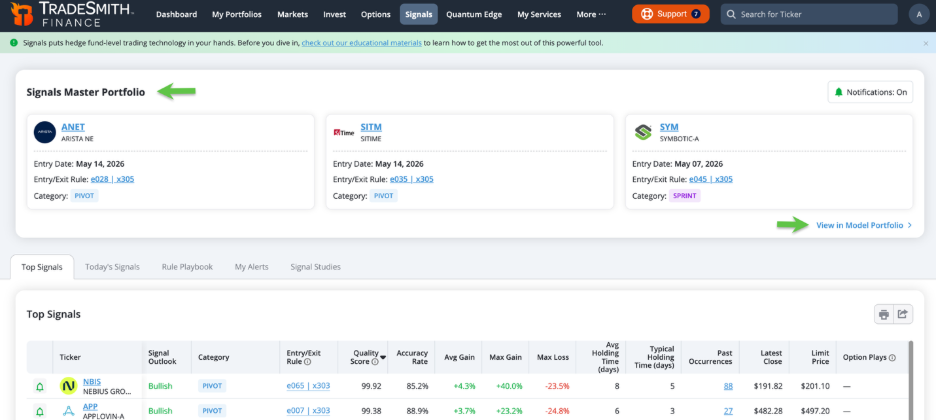
You can also access details about the Signals Master Portfolio, including open and closed positions, by simply clicking the “View in Model Portfolio” link.
Here’s how the Signals Master Portfolio Works:
The portfolio holds three stocks at a time, each selected by the system’s algorithm from the Sprint and Pivot signal categories.
Selected stocks are ranked by our proprietary algorithm, which carefully evaluates historical Signals data including:
- Win rate
- Average gain
- Signal history
- Current market conditions
As exit signals trigger, new positions rotate into the model portfolio. When an exit signal triggers, you would close that stock position, then enter the new recommended trade the following trading day.
The portfolio is designed to use equal dollar allocations across all three positions. When you sell a stock, the proceeds can be reallocated to the next Signals trade.
Beyond the portfolio, we’ve also made it even easier to find your own trades.
Today’s Signals Tab Filters
Second, we’ve also added search Filters to the Today’s Signals Tab. This allows you to narrow down your search for potential Signals trades from the hundreds – or more – that may be available.
You can easily zero in on Signals according to specific filters that matter most to you, similar to using our popular TradeSmith Screener tool.
Here’s a step-by-step guide to using Signals Filters.
It’s easier than you might think, just a few clicks away.
From the main Signals page, simply select Today’s Signals, then click on the Filters button.
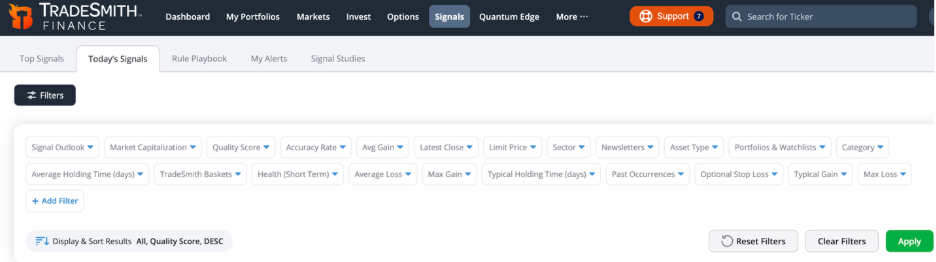
You’ll see a variety of filters that are available to narrow your search. Active filters will appear highlighted in black.
You can begin with these preset filters and refine your results by adding additional filters based on your own preferences.
The Signals filter categories include:
- Signal Outlook
- Signal Category
- Market Capitalization
- Signal Quality Score
- Accuracy Rate
- Average Gain
- Average Holding Time and much more.
You can also choose from several of our popular TradeSmith Screener filters, including:
- Health (Long and Short Term)
- Latest Close Price
- Market & Classification, including:
- TradeSmith Baskets
- Portfolios & Watchlists
- Newsletters
- TradeSmith Baskets
Scroll through Today’s Signals tab and you can find over 1,000 results. But applying some of these Filters can help you narrow your list to find the Signals that are most relevant to your own trading style.
To show you how powerful this can be, here’s an example of how I used the Signal filters recently.
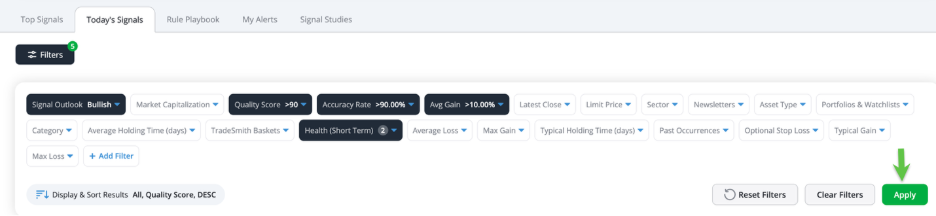
I simply applied the filters shown above, including:
- Signal Outlook = Bullish
- Quality Score, more than 90%
- Accuracy Rate, more than 90%
- Average Gain, more than 10%
- Health (Short-Term) = Green & Yellow zone
Once you have your filters selected, simply click the Apply button at lower right corner. When I ran these filters yesterday, I got the eight results shown below.
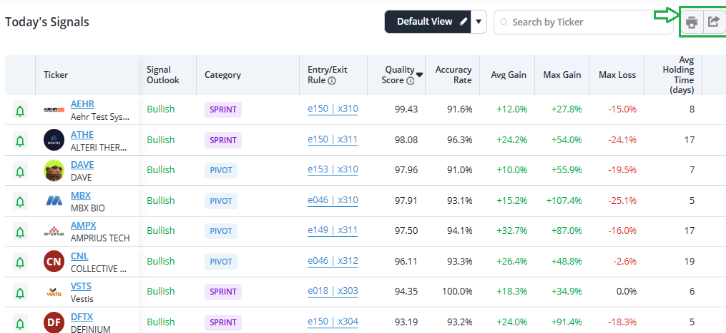
As you can see, all eight Signals carry high quality and accuracy scores and have historically produced average gains above 10%, based on our testing.
And all of them have relatively short average holding periods – ranging from 5 to 19 days.
Keep in mind: These results aren’t predictions, but probabilities based on how these stocks have historically performed after similar Signals.
Mike Burnick’s Bottom Line: Signals can deliver over 1,000 results every day, which can feel overwhelming. By using the Signal Filters, you can narrow the list based on historical Signal quality, accuracy, or average gain potential. Plus, you can filter based on a stock’s health, sector, size, or newsletter. This can help you quickly find the Signals that best suit your own trading style.
Good investing,
Mike Burnick
Senior Analyst, TradeSmith
P.S. The Signals filters we covered today are designed to help you find the highest-quality trade opportunities as easy as possible.
But finding great trades is only half the battle. The other half is knowing when to get out. And in today’s market, that question has never been more important.
AI-driven algorithms now execute many trades on Wall Street, and they move at a speed no human can match. When sentiment shifts, stocks can go from healthy to hammered in a matter of hours. We saw it happen repeatedly earlier this year – and TradeSmith CEO Keith Kaplan believes it’s not over.
Keith has been studying this market environment closely, and what he’s seeing in the data is something every investor needs to understand before it’s too late.
In this special presentation, Tipping Point, he’ll share the evidence, the warning signs, and the specific steps you can take to protect your portfolio before the next wave hits.
If you have access to Signals to find great trades, that’s a great start. But make sure you’re protected on the downside too. Click here to get all the details from Keith.