Get Analytics on the Go with the TradeSmith Mobile App
I spend most of my time watching the financial markets from the comfort of my home office overlooking the beautiful blue Atlantic Ocean here in Florida.
But I don’t have much time to watch the sailboats and fishing boats pass by, because my eyes are glued to multiple monitor screens (plus a laptop) to keep me on top of the market action.
As a result, my TradeSmith Finance platform gets a good workout every day, especially between 9:30 a.m. and 4:00 p.m., when I make full use of our analytic tools and market-monitoring systems to track my portfolio and uncover new trade opportunities.
But when I do hit the road for a conference or a visit to TradeSmith’s HQ in Baltimore, I don’t leave home without the TradeSmith Mobile App (available on the App Store and on Google Play). It gives me instant on-the-go access to our data, indicators, and analytics — right in the palm of my hand.
And if you aren’t taking full advantage of our TradeSmith Mobile App already, then let me take you on a quick tour of this amazing tool.
In today’s issue of Inside TradeSmith, I’ll show you how to install the TradeSmith Mobile App and access all the features. Plus, we’ll go over how to set up push notifications through the app – so that you can get investment alerts and notifications from your portfolios and favorite newsletters.
How to Install the TradeSmith Mobile App
First things first, start by downloading the app.
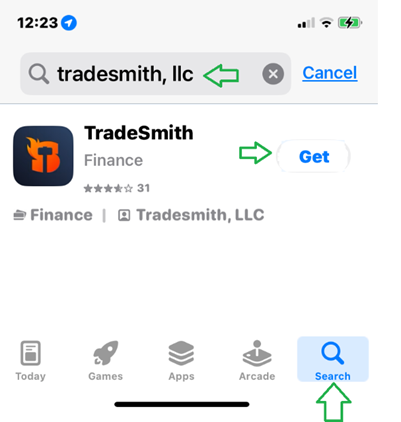
From your phone or tablet, open the App Store (on iOS devices), or the Google Play Store (on Android devices). Then, click on the search bar and type in “TradeSmith, LLC.”
I’ll be showing screenshots from my aging iPhone to illustrate, but the process for getting and installing the app is similar on Android devices.
You’ll see our classic logo at or near the top of your search results. On an iOS device, tap the word “GET,” located to the right of the app icon to install. On an Android device, simply tap the icon, then press the “INSTALL” button on the following page.
You will see a progress bar, showing that your device is downloading your new app – and once it is ready, click the “OPEN” button to open the app.
Navigating the TradeSmith Mobile App
Once you’ve loaded the app, the very first screen you will see is the Dashboard – which mirrors the dashboard view on TradeSmith Finance. And you’ll see that your navigational tabs are located at the bottom of the app, as opposed to the top navigational headers of the website.
The first thing to do is sign into your account by clicking on the Portfolios button marked with a briefcase icon, located at the bottom of the screen:
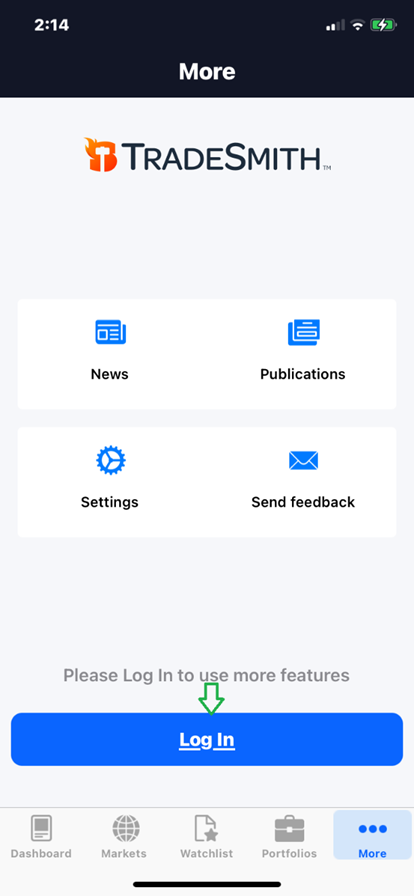
Tap the blue Log In button, then enter the same email address and password you use for your TradeSmith Finance account. Then click Log In again to access your account.
At the very top of the Dashboard, you will see the Index carousel. You can scroll with your finger to the left and right to review all the major U.S. and foreign indexes, as shown below:
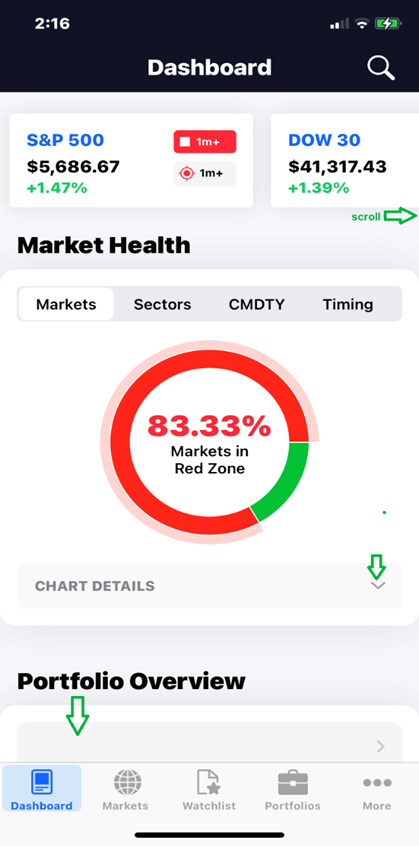
Plus, the Market Health area provides details for the major stock markets, S&P 500 sectors, and major commodities, along with our Trade Cycles Peaks and Valleys under the “Timing” tab if you are subscribed to that service.
Scroll down by swiping your finger to see the Portfolio Overview and Portfolio Distribution areas. Here, you can select from any of your investment or watch-only portfolios for a quick glance at the details:
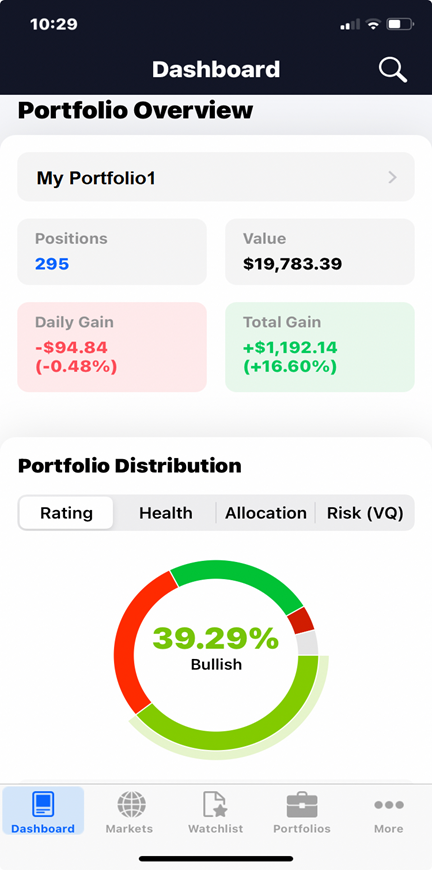
You’ll see your updated portfolio values, daily gains or losses, and total gains or losses. You can also review your portfolio’s Rating, Health, asset allocation, and Risk (VQ) distributions by navigating with the various tabs. Just below, you’ll see your top Winners and Losers and recently triggered alerts.
Further down the Dashboard, you’ll find the My Opportunities section.
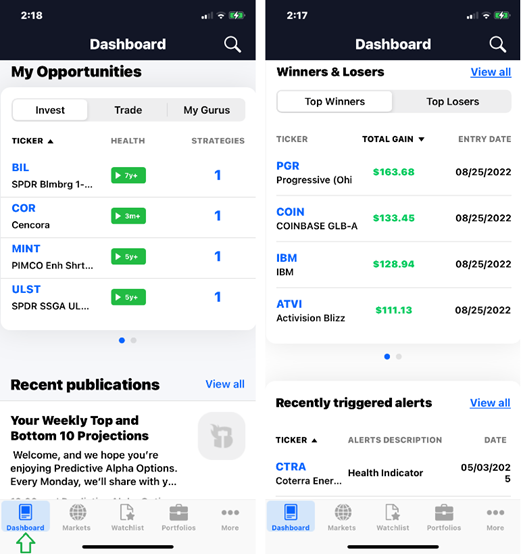
You’ll notice two blue dots at the bottom of the window. That allows you to scroll left and right to find more data. Here, you can swipe right on the window to view the Most Searched Tickers, which keeps track of the top trending stocks from our members updated every two hours.
At the bottom of the Dashboard, you’ll find recent publications from your newsletters, along with the latest market news.
Moving on to Markets
Now, click on the Markets tab noted by the globe icon, to view detailed data on the major U.S. and foreign indexes, along with their current health and price data:
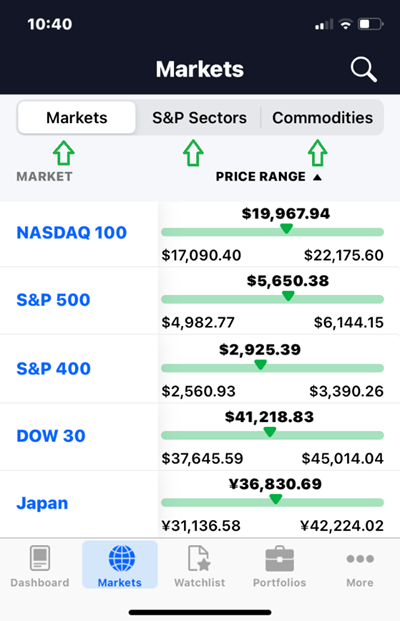
You can click on the individual markets to review the index chart, Health, and Risk indicators further. Once you’ve done so, simply swipe left or right to review the other indexes.
To go back, touch the Markets icon, or the backwards arrow at the top left of the page. From here, you can also review the S&P 500 Sector and major Commodities via the tabs at the top of the screen.
And at the top right of both the Dashboard and Markets pages, you will see a magnifying glass icon that will allow you to search for tickers.
Your On-The-Go Watchlist & Portfolio
The next page, Watchlist (marked with a page and star), allows you to add tickers to your own personal watchlist. Simply click on the plus sign at the top right of this tab to do so.
Right away, you’ll see a list of trending tickers, and you can click on the star to add any of them to your watchlist. Plus, you can also search for your own favorites using the Search for ticker bar at the top of your screen:
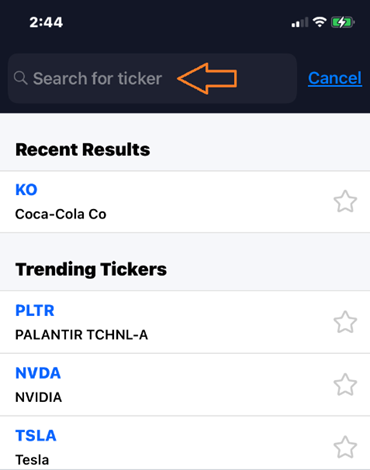
For example, to add Coca-Cola (KO) to your watchlist, click the star to the right of the ticker. You should see a bright green confirmation message at the bottom of the screen once it has been added to your watchlist.
Once you are done adding tickers, just hit the “Cancel” button located at the top right. That’ll take you to your watchlist where you can review all positions.
If you make a mistake, the three vertical dots icon at the top right allows you to select and delete a position. Hit “Yes, Delete” to confirm.
The next tab at the bottom of your screen is for your Portfolios. Here you’ll see all your investment and watch-only portfolios:
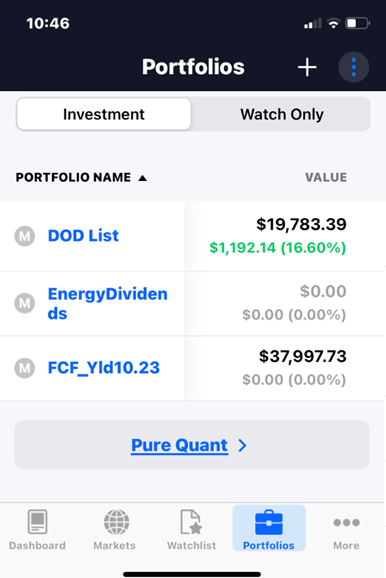
Below your portfolios, you can access the Pure Quant tool if your subscription includes it. Tapping that button takes you to our Pure Quant Portfolio Builder – which we covered last week.
To review your holdings, simply click on the portfolio’s name in the menu. You can then review your holdings by swiping up, and swipe to the left to review all the information columns.
At the bottom of your portfolio view, you may have access to the Risk Rebalancer tool – again, depending on subscription level, much like the Pure Quant tool.
If you don’t see either of these options on your screen – but would like to – simply contact our Customer Care team at 866-220-1107 to find out how to get started.
Last, but certainly not least, is the More tab at far right of your navigation menu, noted by three horizontal dots at the bottom right corner of your phone screen:
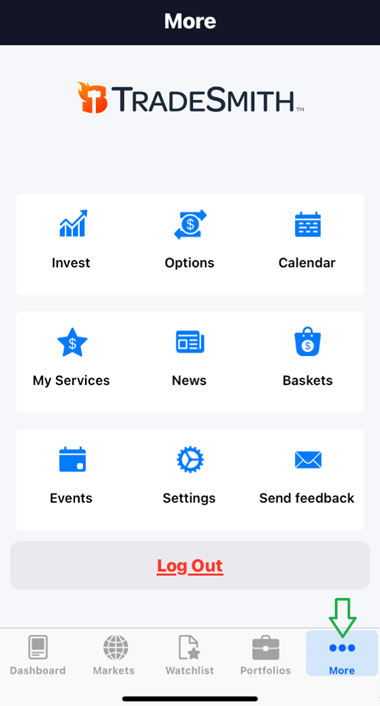
Click on this option and you’ll see a whole new menu of TradeSmith tools, including:
- Invest: provides access to your subscribed tools including Opportunities, Pure Quant, Risk Rebalancer, and my personal favorite, Screener.
- Options: gives you instant access to our Trade360 suite of option trading tools, watchlists, opportunities, and the Options Screener.
- Calendar: gives you access to the Market Calendar, which includes events like stock splits, dividends, and earnings reports, among others. Also, you can click on Timing Calendar to see upcoming cycle turn areas, both peaks and valleys.
- My Services: provides access to your newsletter subscriptions, and the Billionaires Club.
- News: shows the latest market news and news on your watchlist tickers.
- Baskets: takes you to updated TradeSmith Baskets or those you set up as My Baskets.
- Events: allow you to review recently triggered alerts and other events.
- Settings: allows you to adjust your app settings, access additional resources, and even enable face ID for your account.
You’ll also see a red Log Out button at the bottom of the screen, if you wish to use it.
The most important of these options for my money is Settings, as that menu allows you to enable Push Notifications – which can provide instant app and email notifications about new published research, as well as any alerts triggered on your portfolio or watchlist holdings:
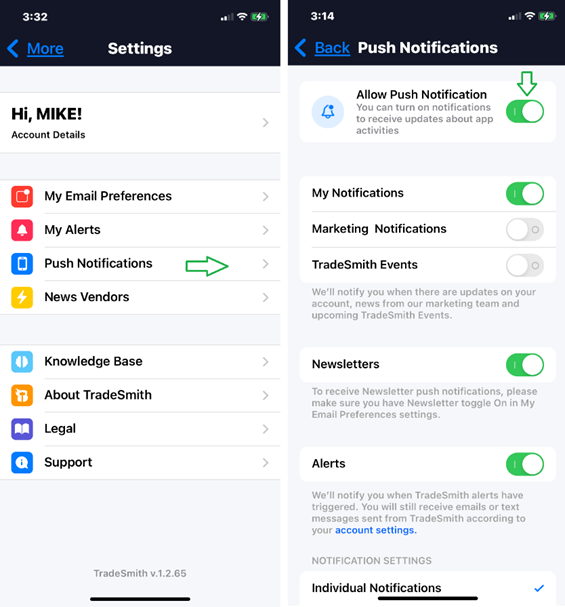
To access them, tap the blue Push Notifications icon under the Settings menu (marked by a phone).
Be sure to toggle the Push Notifications setting to the right so it’s switched to green, as shown above. Depending on your settings, you may need to give the TradeSmith Mobile App access to your phone’s notifications.
Once toggled on, you can adjust your notification settings by checking either Individual Notifications (to get notifications as they’re triggered) or Consolidated Notifications in the list of options below, to get all your updates in one batch.
Mike Burnick’s Bottom Line: That’s just a brief overview of the powerful tools you can put in the palm of your hand with our app.
To see the full features on display in the TradeSmith Mobile App, there’s no substitute for experience. Download the app today, and see for yourself just how indispensable it can be to keep you up to date when on the go. Don’t leave home without it!
Good investing,
Mike Burnick
Senior Analyst, TradeSmith
P.S. The TradeSmith Mobile App gives you all the tools you need to stay updated on the go – and even allows you to access our Pure Quant and Risk Rebalancer tools away from your home computer.
That’s a great tool to have, after weeks of tweet and surprise headline-driven market action have sent markets scrambling. And while the market is slowly recovering some of the ground lost in the past month, there are still plenty of warning signs that signal more dramatic changes ahead.
Now is not the time to let your guard down; in fact, now is the time to be more vigilant than ever.
That’s why Luke Lango, my colleague over at InvestorPlace, has recently presented a special online briefing:The 2025 Summer Panic Summit.
Luke was named the #1 stock picker of 2020 by TipRanks, outperforming more than 15,000 analysts and Wall Street veterans – so he’s incredibly familiar with unpredictable market conditions. And right now, he’s issuing what may be the biggest warning of his career. He believes a $7-trillion shock could hit the market as early as TOMORROW, May 7… driven by a major new policy move.
In his briefing, Luke will present a new class of AI-driven companies he believes could lead the next wave of market moves – and walk you through the details of the coming shock.
There’s still time to catch Luke’s presentation, but you’ll need to move fast: this is your last chance to get this information before this news is due to rock the market.
Click here now to watch Luke’s urgent video update – before it’s too late.