

If you’re a bit like me, you’re always looking for interesting trading and investing ideas. And thanks to TradeSmith’s easy-to-use Screener tool, you never have a shortage of new opportunities.
But then, once you sort through all those stocks, you’ve got to decide when to pull the trigger and add them to your portfolio… remember to size your positions appropriately… and rebalance later on.
For my money, that’s one of the hardest parts of investing: managing and keeping track of the positions in your portfolio. But our numerous TradeSmith Alert tools can help you do it with ease. Basic alerts like the ones I’ll show you today are available with all TradeStops subscriptions, and any other products that include TradeStops.
Why use TradeSmith’s alerts?
The biggest benefits of alerts are to help you protect gains and manage losses.
In TradeSmith Finance, you can assign alerts to individual positions as well as globally across your portfolios.
As soon as you open a new position, the first and most important alert you need to decide on is what to use for your exit strategy.
Simply open any saved portfolio by clicking on My Portfolios in the top navigational menu. From there, click on the Positions tab and select the portfolio you want from the dropdown box, like in the screenshot below.
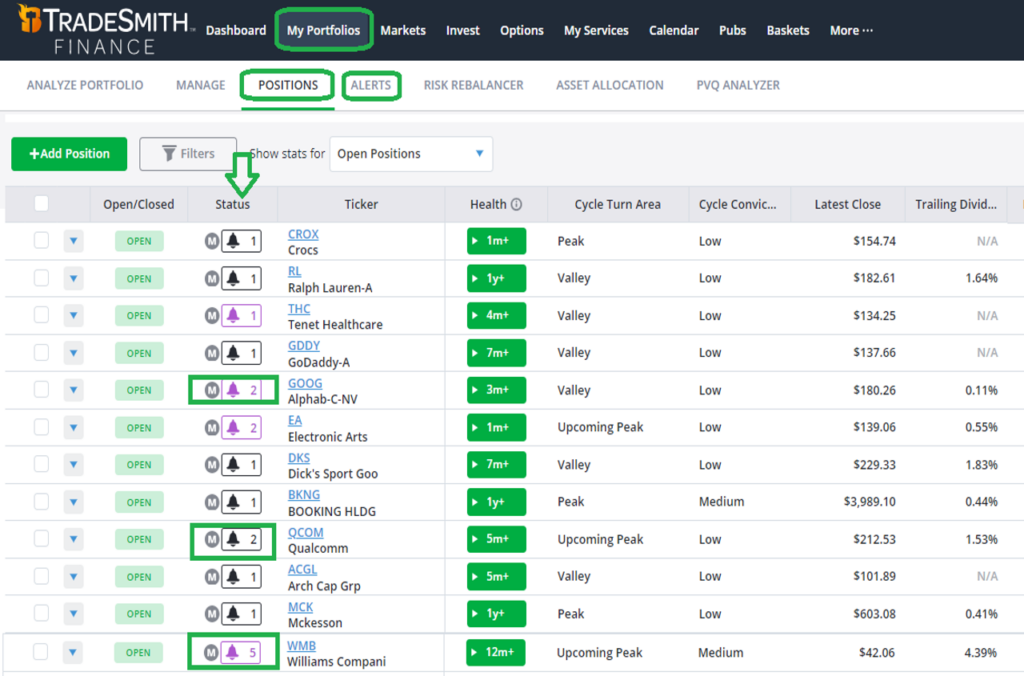
TradeSmith Finance has two proprietary alerts, the Health Indicator and the VQ trailing stop.
- Health Indicator is the green, yellow, and red-light system that tells you whether a stock is in a healthy state.
- Volatility Quotient (VQ) provides customized trailing stops based on historical price data over the past three years, with the most recent data more heavily weighted.
The beauty of the VQ is that it’s dynamic. We update the VQ every week for every asset we track, which means we automatically adjust the VQ up or down based on volatility and price movements.
In the TradeSmith Finance screenshot above, you can quickly see the Health – all those green rectangles in the Health column – for each position. That’s why I typically default to the VQ Trailing stop.
With a single mouse click you can easily set a VQ alert for every position in the portfolio. Just select the check box at top left, under the + Add Alert button, as shown below.
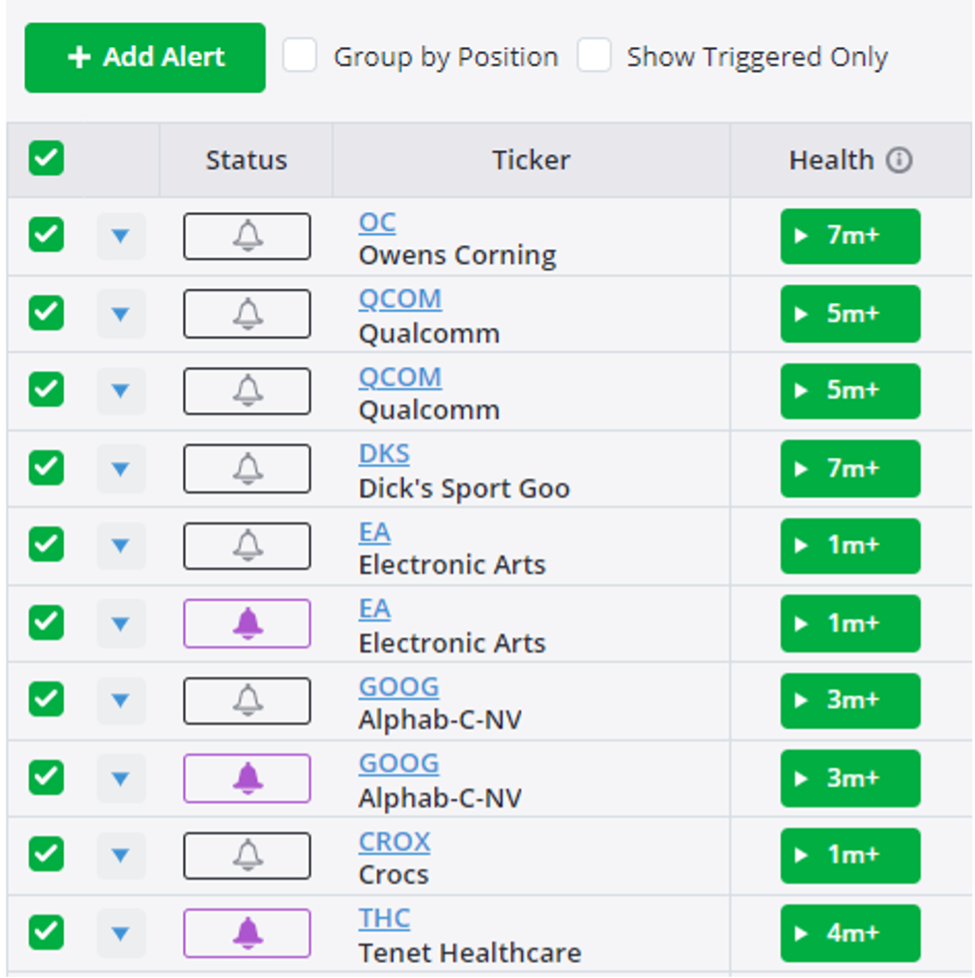
The Status column above tells you whether an alert has been triggered. When the alert bell is colored purple, one or more of my alerts for that stock have been triggered.
The Alert State column in the image below tells you if any alert has been triggered. And the Alert Description to the right tells you specifically which alert was triggered.

You can assign customized price or fundamental alerts to positions to tell you if stocks have met certain price, volume, or fundamental triggers. The alerts triggered in all four stocks above are individual alerts, not the VQ trailing stop alert.
- Above you can see that Electronic Arts (EA) and Alphabet (GOOG) have both triggered price stops: 1 week high for EA and 1 month high for GOOG.
- Meanwhile, Tenet Healthcare Corp. (THC) triggered a fundamental stop showing the stock has a P/E to Growth (PEG) ratio below 1.
Setting up individual alerts
TradeSmith Finance allows you to set up various alerts quickly and easily.
Open the Position Card Page for any individual stock that’s part of your portfolio or watchlist, click on the Alerts tab, and then click on the green Add Alert button.
There are five distinct alert types you can choose from. Let’s take a closer look, and I’ll explain how to use each one.
First, as you see at the top of the screenshot below, are the Trailing Stop alerts. Here you can choose between two types. I’ve selected VQ for all my positions, so the actual stop price is determined and automatically adjusted by each stock’s VQ. Or you may set a Custom % stop at any level you choose, say 10% below the start date price. Both trailing stops track the highest closing price since entry date.
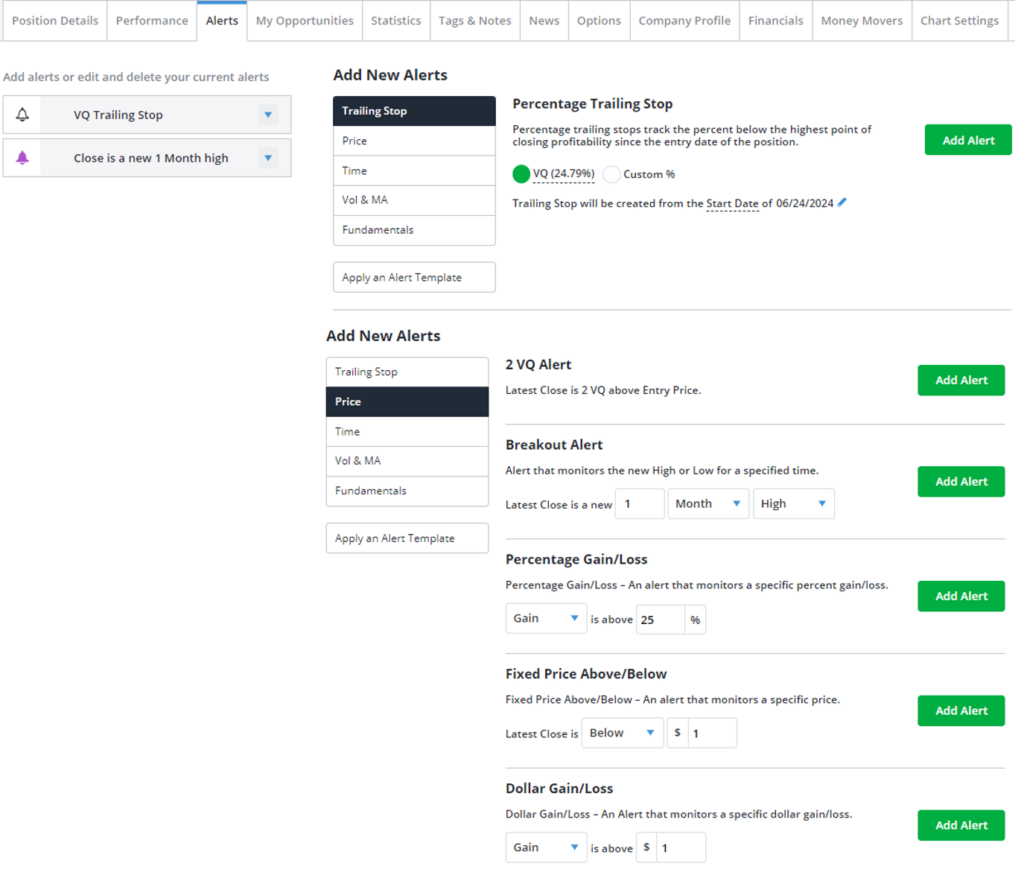
The alerts for Price are displayed in the lower part of that screenshot. Here you can choose from several price-based triggers:
- 2 VQ Alert: When the price moves two VQ% above the entry price
- Breakout Alert: When a stock hits a new high or low within a certain time frame (day, week, month), like EA and GOOG above
- Percentage Gain/Loss: When a stock makes a certain % move in any time frame
- Fixed Price Above/Below: When a stock moves up or down to a specific price target
- Dollar Gain/Loss: When a stock gains or loses a set dollar amount
Shown below in the upper panel are various Time-based alerts you can set. These are:
- A set number of Calendar Days After Entry date
- Alternatively, the number of Trading Days After Entry date
- The number of Profitable Closes After Entry
- And a Specific Date in the future, perhaps an earnings announcement or Ex-dividend date
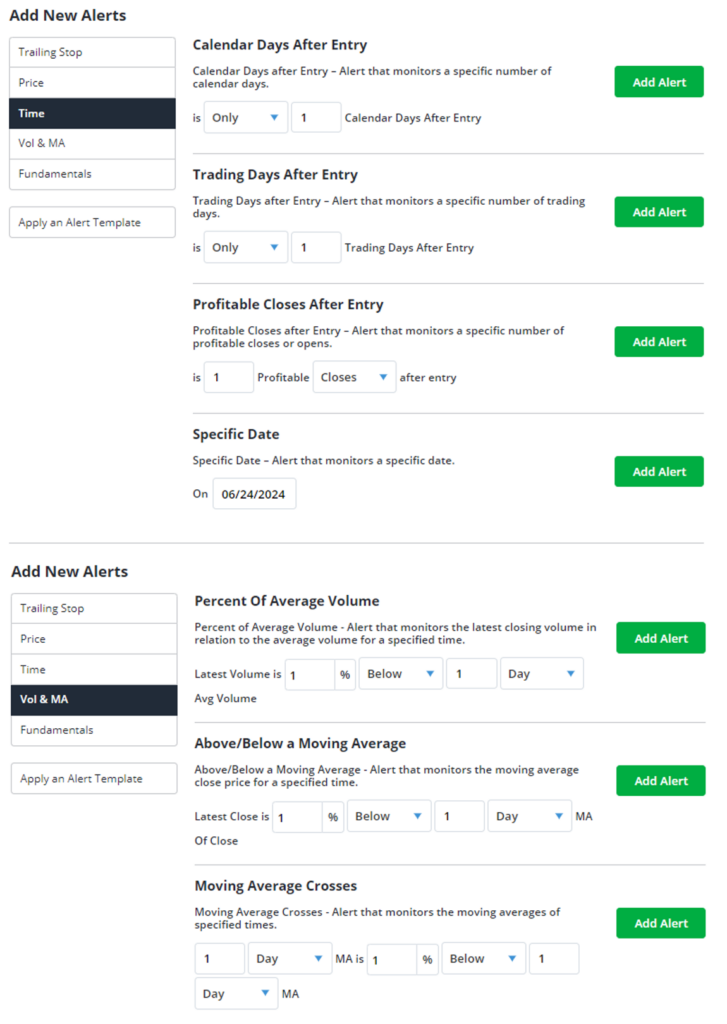
Next, in the lower panel above, are the available Volume & Moving Average alerts.
- Percent of Average Volume: When daily volume is a set percent above or below a multi-day/week average volume. For example, the latest volume is 25% above the 10-day average volume.
- Above/Below a Moving Average: When the stock hits a set percent above or below a moving average. For instance, 3% above the 50-day price moving average.
- Moving Average Crosses: When two moving averages cross. For example, when the 50-day crosses above or below the 200-day moving average.
You can also set individual alerts (or universal alerts for your entire portfolio) based on fundamental factors, as shown below.
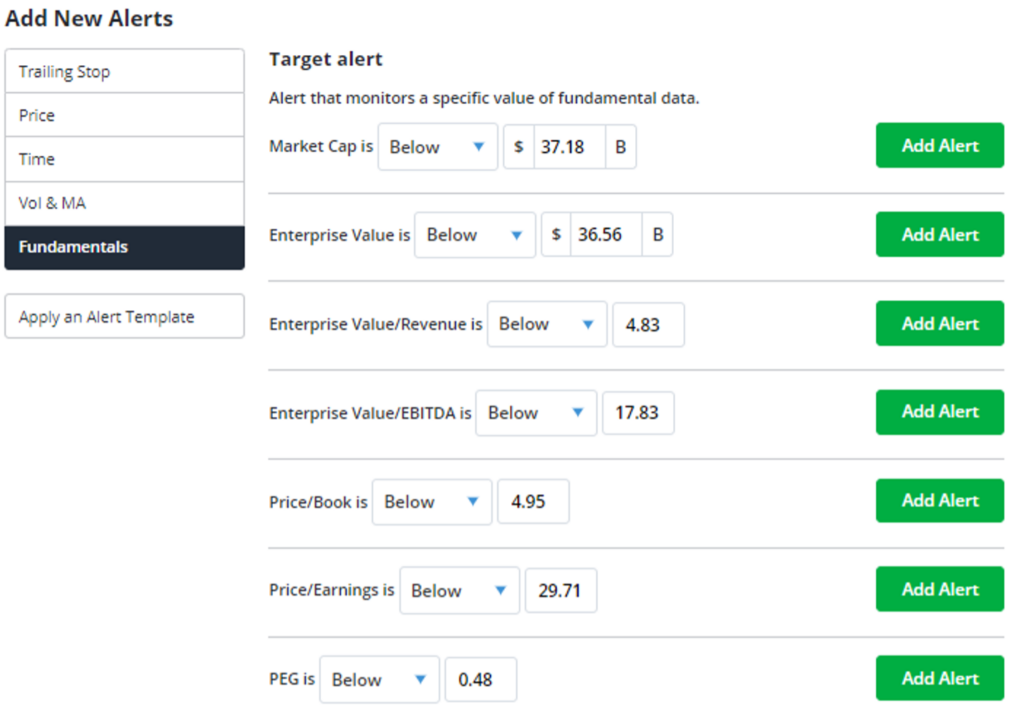
In this case, I’m looking at fundamental alerts for GOOG stock in my portfolio. You’ll notice each Target Alert is pre-populated with the stock’s current fundamental ratios, but you can adjust them as you see fit before you click Add Alert.
Most of these fundamental ratios are self-explanatory, but I’ll give you color commentary on two I like best.
- Enterprise Value (EV): A stock’s market capitalization plus debt, or the total “worth” of the company. EV compared to total revenue is shown here. It’s similar to price-to-sales.
- P/E to Growth (PEG) Ratio: Compares earnings (EPS) for the trailing 12-months (TTM) to the previous 12-month EPS so you can see how fast profits are growing relative to the P/E valuation ratio, like the THC example earlier in this article. As a rule of thumb, a PEG ratio below 1.0 is good because profits are growing faster than the P/E.
Now, here’s the real fun with alerts
You can also mix and match multiple alerts if you see different elements in the long list above that fit your style. It’s called a custom Alert Template and it’s great for combining, say, volume, price, and fundamentals into a single alert.
Here’s a template I set up and use frequently based on volume, moving averages, and prices hitting new highs. I call it my “Price Vol. MA Breakout” alert, and it has three key elements.
- Volume 125% above the 1-week daily average volume: Increased trading volume is bullish.
- Price closes at least 1% above the 10-day moving average: That’s a price breakout.
- Close price must also be a new 1-month high: This equals existing upside momentum.
Combining these three elements helps me to spot price breakouts on increased volume for stocks surging to at least a one-month high.
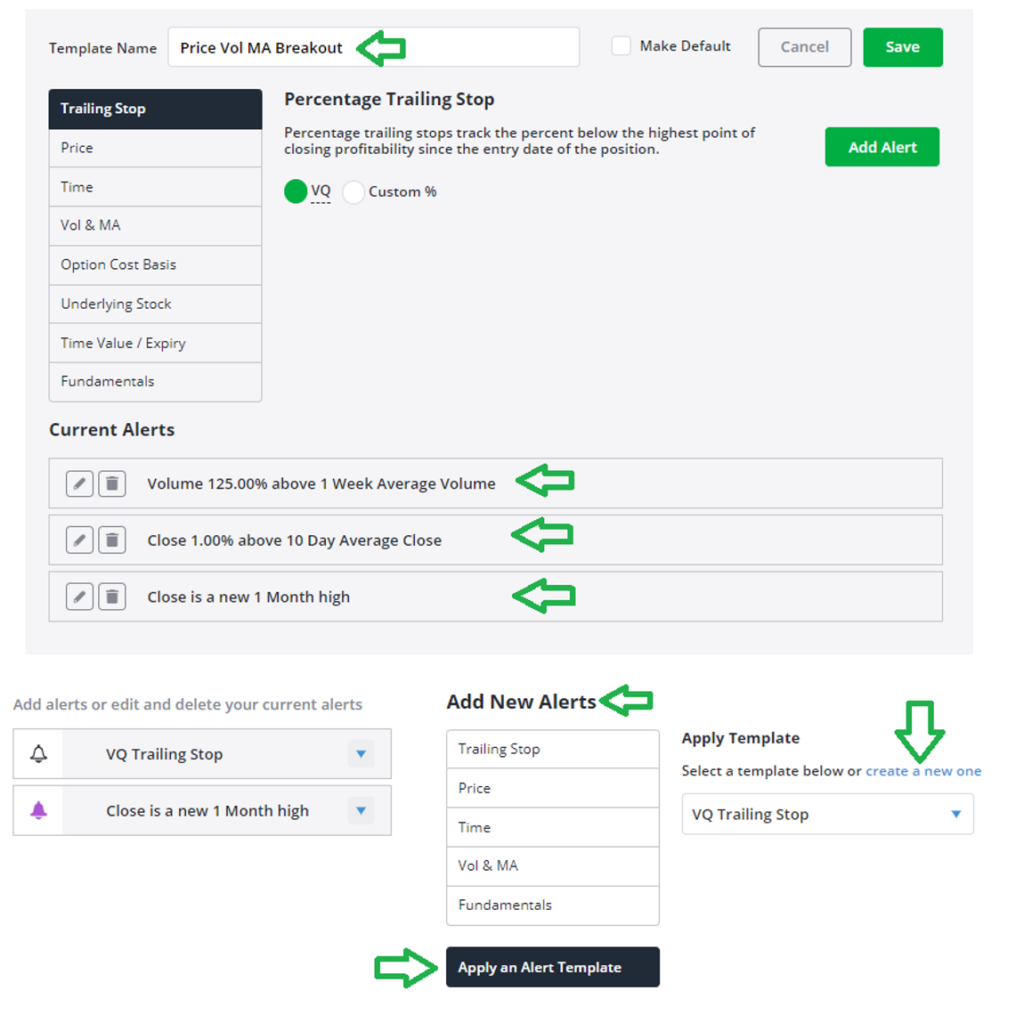
And here’s how to apply an Alert Template, as shown in the lower panel above.
From the Add New Alerts area, scroll down and click the Apply an Alert Template box. Then from the dropdown menu at right, select any previously saved alert template.
Or Create a new one when you click on the blue linked text. This allows you to choose and combine different alerts based on price, volume, moving averages, fundamentals, and any custom time frames. Pretty neat stuff!
Mike Burnick’s Bottom Line: Managing your investment portfolio or a watchlist can be a tall order. And the more positions in your portfolio, the more work it is to keep track of everything. But the My Portfolios and Alerts sections of TradeSmith Finance make it easier than ever to manage your portfolios.
As with all our TradeSmith tools, be sure to make the Alerts tool your own. As you can see above, you can quickly and easily create an alert template that includes almost any condition or filter you can think of. Take a minute to customize your Alerts for even better peace of mind that TradeSmith is doing the hard work for you.
Good investing,
Mike Burnick
Senior Analyst, TradeSmith