Here’s How to Stay on Alert for Portfolio Risks and New Buying Opportunities!
Editor’s Note: Happy Thanksgiving! The TradeSmith offices, as well as our Customer Service line, are closed today for the holiday – and both will be closed tomorrow, Friday, Nov. 27 as well. Our regular hours will resume on Monday, Dec. 1. Please note that the market is closed today, but it will reopen for a half-day on Friday. We hope you enjoy the holiday!
The stock market has taken investors on a wild ride recently. That’s no surprise, considering the longest-ever U.S. government shutdown that just concluded – or the growing concerns over high stock valuations that continue to cause anxiety on Wall Street.
But even as we enter December, the 2025 market turbulence may not be over yet.
Recently, Jamie Dimon, CEO of America’s largest bank JPMorgan (JPM), warned of more “cockroaches” beginning to infest the credit markets.
At least one prominent private lender, Blue Owl Capital (OWL) has suffered “accelerating redemptions,” according to The Financial Times. But that may be just the tip of the iceberg, considering what’s happened to OWL’s stock price:
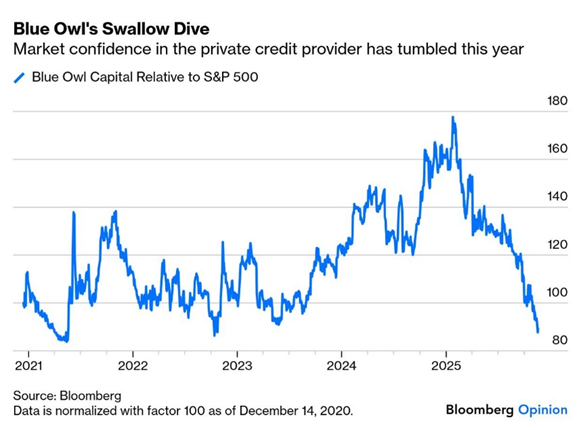
Better call the monetary exterminators…
In a financial climate like this, with uncertainty rising by the week, managing your investment risk to help protect your portfolio from downside has never been more important.
If your portfolio could use a second set of eyes on it, don’t worry: Our TradeSmith Finance tools can help you get prepared right now – in less time than it takes to roast the turkey!
Get Set for Success with Portfolio Sync and Two-Factor Security!
You can’t manage your investment risks without a review of what you’re invested in. So make sure to sync your investment portfolio, so you can more easily track the health and performance of every security you own. After that, you can let TradeSmith help you manage unexpected risk and keep you posted on the latest developments – all with the help of our flagship TradeStops software.
If you haven’t done so already, securely syncing your brokerage account allows you to easily track all of your investments in one convenient place.
It’s a quick and effective way to take more control over your finances – and it helps you avoid unnecessary risk, too.
I covered our Portfolio Syncing tool in detail in a recent Inside TradeSmith column. It’s a great how-to resource you can follow step-by-step, to easily and safely sync your brokerage account with the TradeSmith Finance platform.
And as an added layer of security for your synced account, be sure to take full advantage of our Two-factor authentication feature. Here’s how to quickly and easily set it up:
Once you’re logged into TradeSmith Finance, simply click on your name or initial in the upper right corner of the page to access your account features. Then, click on the Settings button as shown below:
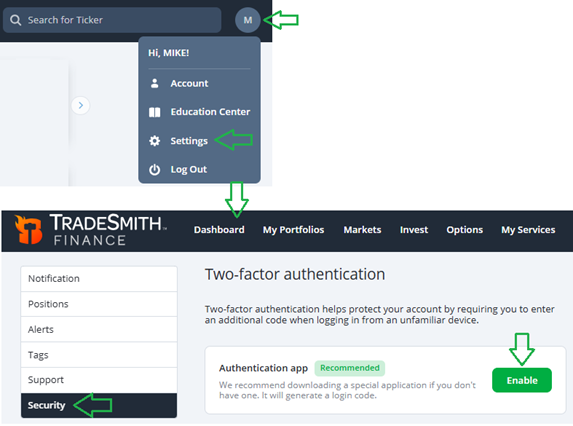
Next, scroll down and click the Security tab on the Settings page, and you’ll see the option to set up Two-factor authentication. Click the green Enable button to get started with this extra security feature.
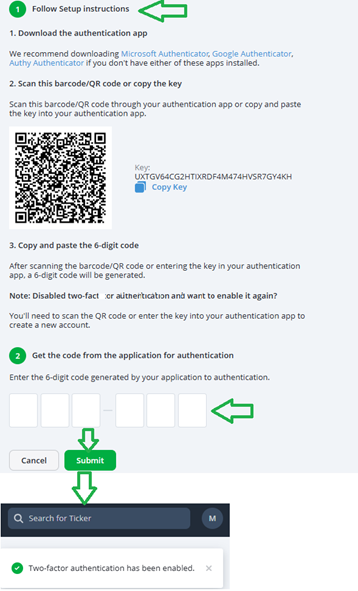
You’ll be presented with these easy-to-follow instructions:
- You’ll begin by downloading the Microsoft, Google, or Authy Authenticator app (your choice).
- Then, with the app of your choice installed, scan the barcode with your authenticator, which will provide you with a six-digit code.
- Finally, just type (or copy/paste if you’re on mobile) the authenticator’s code into the box below – then click the green Submit button.
You’ll know your two-factor authentication has been enabled when seeing a notification message pop up at the upper right of your screen on TradeSmith Finance.
Once you’re in sync and fully secured with two-factor authentication enabled, you’re ready to fully capitalize on the potential of our TradeStops tools – and ready to keep track of your investments and better manage your risk moving forward.
Protect and Position Yourself with TradeStops!
TradeStops is based on our unique risk metric, the Volatility Quotient (VQ%). It’s the heart of our flagship TradeSmith system, providing customized trailing stops for every security you hold.
Plus, the VQ helps guide you to the right position size for each security in your portfolio, according to that security’s unique risk profile.
We use three years of historical price data to identify VQ for every security: This is the “normal” volatility profile for that security, and the VQ is dynamically updated every week based on new data.
The resulting VQ trailing stop generated by TradeStops for that security gives you a completely customized protective stop level for every position you hold in your portfolio, based on these unique volatility profiles.
This takes a lot of the guesswork out of managing your investments, by taking the emotions out of the process. Instead, you can rely on the proven data to help guide you… and with help from our system, to help maximize your gains and keep you out of harm’s way if a security you hold starts heading south.
Plus, TradeStops helps you avoid the biggest investment snares of all: putting too much money into volatile stocks and getting trapped in stocks that keep falling.
Here’s how to quickly set your own protective VQ trailing stops and Alerts, to keep you updated on every position in your portfolio…
Whether your portfolio is fully synced or if you manually entered your holdings into TradeSmith Finance, the fastest way to add TradeStops alerts is from the My Portfolios page. Select the Positions tab to get started.
Pull up your preferred portfolio using the dropdown menu shown below. In this example, we’ll use the portfolio labeled My Portfolio:
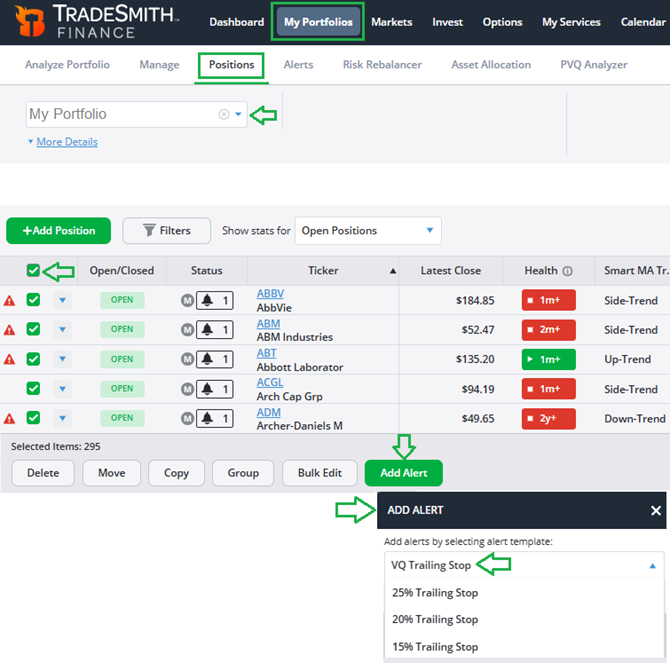
Now click on the checkbox at the upper left of the portfolio view to select ALL the positions in your portfolio. Each position entry should now have a checkmark in the box at far left of its row.
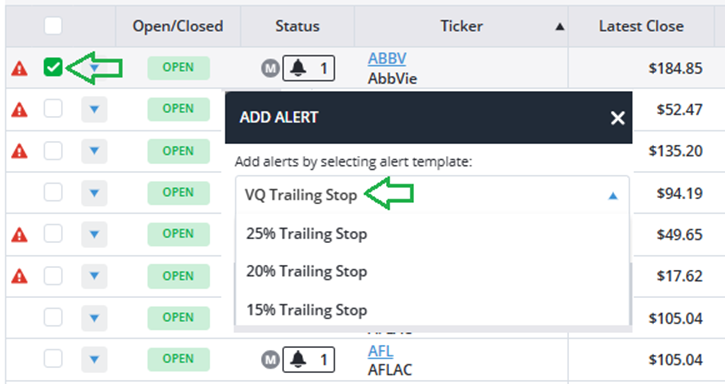
Next, click on the green Add Alert button at the bottom of the page. A dialog box will appear, prompting you to add the alert of your choice.
We’ll use our proprietary VQ Trailing Stop, based on the unique volatility of each security. But you could also select from other trailing stop options as shown above. These include options to set stops based on percentage movements below the latest price.
Click the alert type, and this will add trailing stop alerts to every position in your portfolio – with just a single click. It’s as easy as that!
You can also easily add – or edit – stop alerts on individual securities by clicking only on the box in the row for that security, then selecting your stop from the Add Alert menu:
Now, once you’ve set up your trailing stop alerts, you can quickly check the alert status by clicking on the Alerts tab of the My Portfolios page (just to the right of Positions, as shown below).
Notice that when the bell icon under Status is shaded with a dark color, it indicates that the alert has been triggered – as is the case with Kraft Heinz (KHC) and Weyerhaeuser (WY) below:
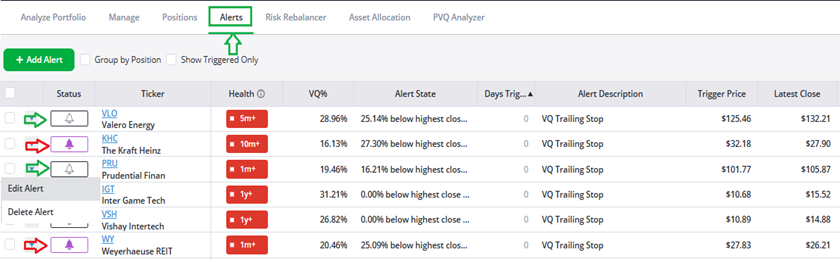
Meanwhile, if the alert bell is unshaded, as with Valero Energy (VLO) and Prudential Financial (PRU), then the alert is still active and has not been triggered.
You can quickly and easily edit or delete your alerts from this page, by simply clicking on the down arrow icon to the left of the bell.
Now that we’ve covered the basics, let’s move on to the really good stuff.
If you’ve been following along at home, then you’ve already:
- Synced your brokerage account with TradeSmith Finance, and
- Set VQ stop alerts on all your securities to manage risks.
Now, here’s the best part.
TradeSmith can notify you via email if any security in your portfolio triggers a trailing stop… or if that security triggers any other alert you choose to set up. Here’s how.
Customize Your Alert Settings for Email Reminders!
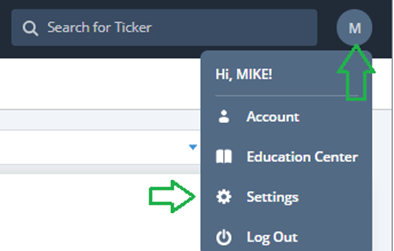
Once again, we’ll need to enter the Settingsmenu. Simply click on your user tab at upper right of the screen on TradeSmith Finance, then click the Settings button, as shown below:
Next, scroll down and click the Alerts tab. This will take you to the Alert Settings page, shown below, where you can customize your settings and get emailed whenever alerts trigger for a security in your synced or manually saved Portfolios:
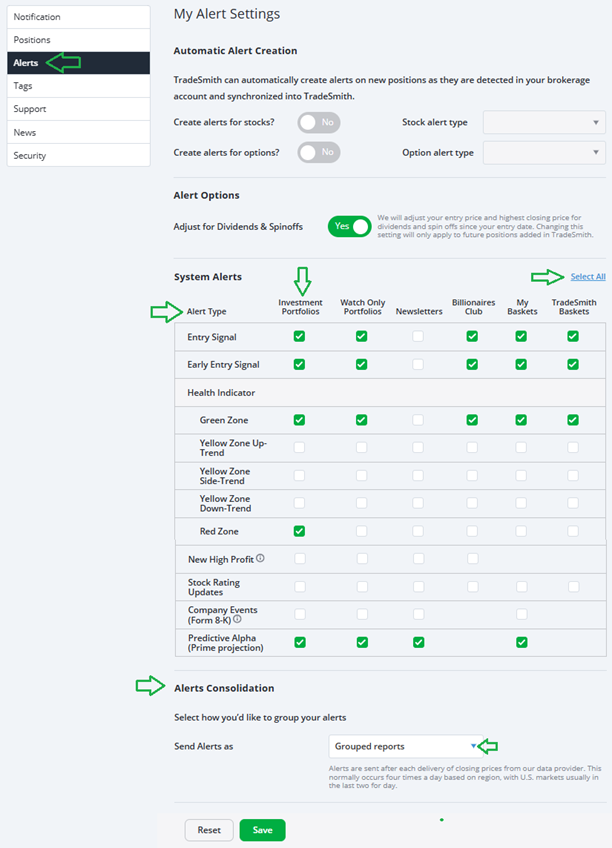
Plus, by working your way across this page, you can toggle alert emails for any Watch Only Portfolios or My Baskets lists that you’ve set up, Newsletters you’ve subscribed to, the TradeSmith Billionaires Club, or any TradeSmith Baskets.
Simply choose the type of alert you want emailed to you from the Alert Type menu on the left above.
Let’s quickly review each of these alert types…
- Entry Signal: When our Health Indicator moves from Red to Green, it tells us when it’s safe to get into a stockthat was previously stopped out.
- Early Entry Signal: This signal will provide you with a speedier entry signal when the security is still in the Red Zone, but our system detects a new uptrend.
- Health Indicator: Is our proprietary our green-, yellow-, red-light system. Use them to alert you to a health change in any direction for securities in your portfolio, as well as Warch list portfolios and newsletters you subscribe to.
You can also choose the frequency you want to receive your alerts under Alerts Consolidation by selecting either Grouped reports (to get multiple alerts in one email) or Individual notifications.
Now you’ll start to receive TradeSmith Alerts Report emails like this whenever any security in your portfolio triggers your preset alert:
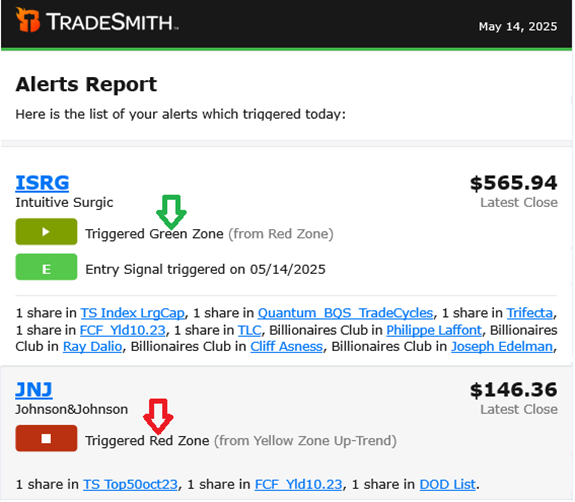
The Alerts Report will warn you if a security you hold falls into the Red Zone, triggers a VQ stop, or triggers any customized trailing stop you set.
Plus, these alerts are a great source of new potential trade ideas.
You may consider buying stocks with new entry alerts when they move into the Health Indicator Green zone, for instance.
Also, stocks moving from the Yellow back into the Green Zone are often good buy-the-dip possibilities.
If you don’t see these tools and options in your TradeSmith Finance platform – and you’d like to – give our Customer Care team a call at 888-623-0858 to find out how to get access.
Bottom Line: If you haven’t done so already, be sure to sync your investment account securely with TradeSmith Finance – and enable two-factor authentication as an extra layer of safety while you’re at it.
That opens the door for you to easily set and receive alert notifications on every security you own. That way, you’ll never miss any important changes in your portfolio.
Portfolio management systems like TradeStops used to be available only to Wall Street’s elite institutions. But we’ve leveled the playing field by making these powerful tools easily accessible and affordable to all investors – helping to make you be more successful in the process!
Good investing,
Mike Burnick
Senior Analyst, TradeSmith
P.S. The TradeStops system is your ace in the hole when it comes to protecting your portfolio from downside – and the customizable alerts in TradeSmith Finance are a great way to spot new entry signals as they appear in the market. But there are some opportunities even our systems can’t catch.
Thankfully, that’s where experts like Luke Lango come in…
Luke is one of the premiere analysts at our corporate partner InvestorPlace – a market maestro who has doubled his readers’ investments into more than 200 stock picks over the years. Earlier this week, Luke went live with a special presentation to share his latest research.
In recent months, national governments have been stepping directly into the race for AI dominance: Through direct investment, new partnerships, and ground-clearing legislation, projects in the AI, semiconductor, and energy space that would’ve taken years to get off the ground are coming online in months.
These efforts are changing the tech landscape… but they’re also rewarding investors handsomely: Companies are seeing stock prices surge as high as 400% on the back of these announcements, leaving lucky shareholders with potentially life-changing gains.
Many of these surges have felt totally random – but according to Luke, there are patterns and signals to follow ahead of these price-spiking events.
Better yet, Luke’s gone to bat saying he’s already identified the next winner to-be.